How to edit photo and PDF sheet music
Most band charts arrive as photos or PDFs. A missing repeat sign, two pages you wish were one, someone else's part printed on the same sheet - until now you just lived with it. BSN imports photos and PDFs as pages, lets you cut out what you need and move it, erase what you do not, and flatten it back into a single image.
Band Session Note is built by a working saxophonist for real rehearsals and live shows. The photo tools came from fixing charts received in group chats for the stage.
Sound familiar?
- •A chart photo from the group chat is tilted with wide margins, so the notes are tiny on the tablet.
- •If only the last four bars of page two sat at the bottom of page one, you could play without a turn.
- •Your part is printed next to someone else's and you only want yours.
- •You need to write chords and rehearsal marks on the photo but printing it out again is a hassle.
- •PDF charts have to be converted to images in another app first - one more step every time.
How BSN solves it
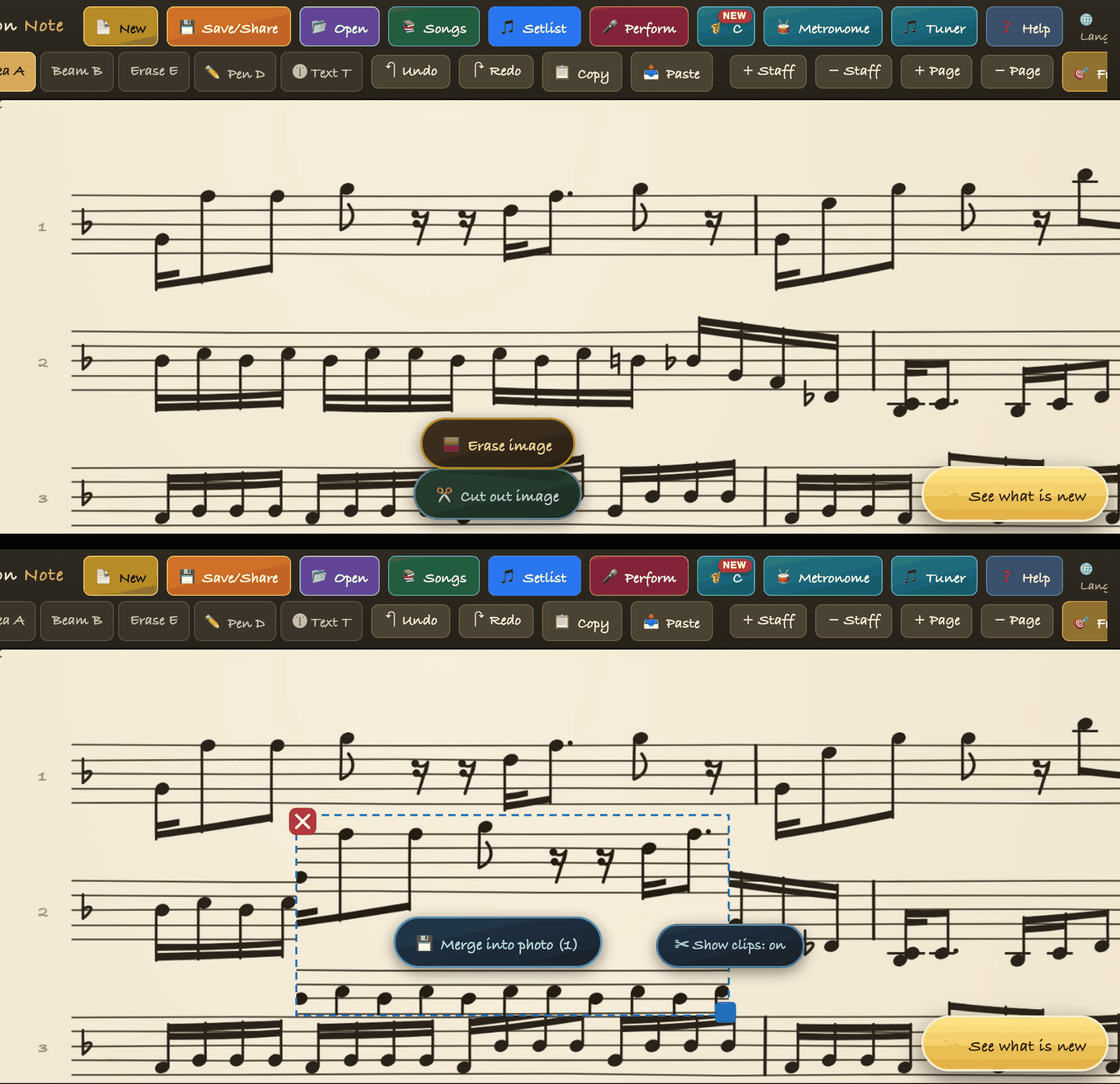
Choose photos or a PDF from Import and they come in as pages, several at once; PDFs are converted inside the app. Drag over a region with Area select and the "Cut image" and "Erase image" buttons appear. A cut piece can be dragged anywhere and resized by its handle, and when you are done, Flatten into photo makes it one image again. Write over it with pen, symbols, notes and text, or draw a five-line staff with the staff pen and place notes on it. The edited score goes into your setlist and straight to performance mode.
Key features
- •Import photos and PDFs - several at once (up to 10 pages); PDFs are converted in the app.
- •Cut and move - drag an area, tap Cut image. Drag the piece anywhere, resize with the bottom-right handle, delete with the top-left ✕.
- •Erase what you do not need - erase the selected area, or rub with the photo eraser and it fills with the original paper color.
- •Flatten into photo - merges the pieces you placed back into one image file. Undo still works afterwards.
- •Safe at page edges - since v1.12 cutting and flattening no longer clip at page edges or outside the photo.
- •Write over it - pen, symbols, notes and text; a white pen for dark photos; a staff pen that draws five lines so you can place notes on the photo.
- •Straight to the stage - put the edited score in a setlist and turn it by tap or pedal in performance mode. Export as PNG, JPG or PDF and save or share.
How to use it (5 steps)
- 1Tap Open at the top and choose a photo or PDF. Select several at once if you have them.
- 2Tap Select → Area select in the left toolbar and drag over the part you want to move. "Cut out / Erase image" buttons appear.
- 3Tap Cut out image and drag the piece where you want it. Remove unwanted parts with Erase image.
- 4When everything is in place, tap Merge into photo to make it a single image.
- 5Add notes with pen or symbols, save, and open Performance at the top.
Who it is for
- •Bands and ensembles that pass charts around as photos and PDFs
- •Players moving from paper to a tablet
- •Band leaders and teachers who mark up charts and hand them out
- •Performers who want two pages squeezed into one to avoid a turn
Supported devices and limits
iPad (optimized for Apple Pencil), iPhone, and Android tablets such as Galaxy Tab. A photo score is an image, so playback and transposed view apply only to notes placed in the app, and a staff cannot be added on an image page (add it on another page). Bar following in performance mode works once you draw barlines.
FAQ
How do I import a PDF?+
Pick the PDF in Import and it is converted into page images inside the app. No other app is needed first.
Can I undo a cut?+
Yes. Delete the piece with its top-left ✕ or use undo. Even after flattening, undo reverses it.
What does an erased area look like?+
Areas rubbed with the photo eraser fill with the original paper color, so they look naturally blank. The original photo is kept.
Can I place notes on a photo score?+
Yes. Draw from a start to an end point with the staff pen and a five-line staff appears there; notes placed on it snap to the lines and spaces.
Do playback and transposed view work on an edited photo score?+
No. Playback and transposed view apply only to notes placed in the app. Photo scores work with performance mode, setlists and export.
Start with Band Session Note today
One-time purchase on the App Store (iPad and iPhone) or Google Play (Android). Photo and PDF editing is built in.